
Synchronize your calendars with iCalendar
Connect each room or unit to an external calendar, exchange unavailabilities both ways, and easily check the sync.
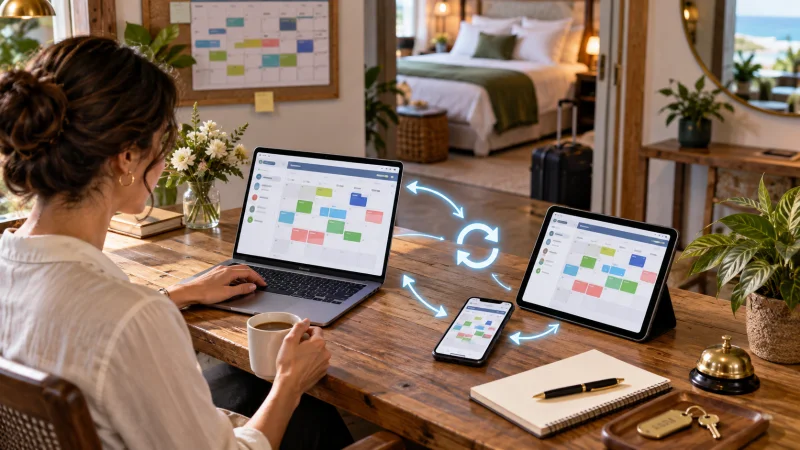
A double booking doesn’t always come from a typing error. It can simply happen when accommodation is offered on multiple sites and a reservation made on one of them hasn’t yet been updated on the others.
iCalendar synchronization helps share unavailable periods between GoMyRoof and the other platforms used by the host. It avoids having to manually copy each booking into multiple calendars.
To actually be useful, the connection must be done both ways and for each room, bed, or available unit.
What is an iCalendar?
iCalendar is a standard format used to exchange calendar events. The corresponding links often end with .ics, even if it's not always visible in the address.
In the hosting field, these events are mainly used to share busy or unavailable periods.
Each platform provides a calendar link that the other platform can check regularly. When a busy period appears in the source calendar, it is imported into the connected calendar.
What iCalendar actually syncs
iCalendar synchronization transmits the dates during which a unit should no longer be available for booking.
The GoMyRoof calendar exports, in particular:
- GoMyRoof reservations taken into account by the calendar;
- times marked as blocked or unavailable;
- start and end dates of each unavailability.
The calendar exported by GoMyRoof does not include the traveler's name or contact information. The other platform only receives the information necessary to identify an unavailable period.
What iCalendar doesn’t sync
iCalendar is not a full accommodation manager. It does not automatically transmit:
- prices and promotions;
- the number of travelers;
- cancellation conditions;
- services and amenities;
- messages exchanged with the traveler;
- payments and refunds;
- the customer's personal information.
These elements must therefore continue to be managed on each relevant platform.
Understanding import and export
The complete connection is based on two complementary movements.
Export GoMyRoof availability
GoMyRoof provides a unique link for each unit. This link must be added to the calendar import function offered by the other platform.
The other platform will then be able to read bookings and unavailable periods recorded on GoMyRoof.
Import external availability
The other platform also provides its own iCalendar link. This link must be copied and saved in the GoMyRoof space corresponding to the same unit.
GoMyRoof will then be able to retrieve the periods already booked on this external calendar and adjust the availability of the concerned unit.
If only one of these links is set up, information only flows in one direction. For full synchronization, both calendars must be connected.
Connecting your calendars on GoMyRoof
Open the synchronization page
From the host area, open Listings and availability, then Calendar synchronization.
The page shows your bookable listings, their number, their image, and the rooms or units that can be connected.
Choose the right unit
Open the relevant listing and pinpoint exactly which unit to sync. The link should not be placed randomly on another room, even when multiple accommodations have similar names.
A GoMyRoof unit must always be linked to the external calendar representing exactly the same room, apartment, or bed.
Copy the link provided by GoMyRoof
In the block Send GoMyRoof availability, paste the displayed link.
Then open the calendar manager on the other platform and use its import function. Paste the GoMyRoof link into the designated field.
Add the link provided by the other platform
From the other platform, use the feature that allows you to export or share an iCalendar. Copy the link you get.
Go back to GoMyRoof and paste it in the field iCalendar link provided by the other platform, under the same unit.
Then save the connection. GoMyRoof will immediately try to read the calendar and display the synchronization result.
A different calendar for each unit
When an establishment has several rooms or multiple identical units, each one has its own GoMyRoof calendar.
This separation is important. If a room is booked through another channel, only the corresponding unit should become unavailable. Other rooms that are still free should remain bookable.
So, the connection needs to be repeated for each unit:
- a GoMyRoof link specific to the unit;
- an external link corresponding to the same unit;
- a check after the first synchronization.
Using the same external link for several different units can create unnecessary blockages or give an incorrect view of availability.
Understanding the different statuses
The synchronization page shows the status of each listing and each unit.
- Synchronized means that the external calendar was read without error during the last attempt.
- To connect means that no external calendar has been registered yet.
- Pending connection indicates that a link exists, but a first synchronization still needs confirmation.
- Partially synchronized means that some units are connected, and others still require action.
- Action required indicates that the last attempt encountered an error.
- Synchronization disabled means that this feature is not currently active for the listing.
When an error appears, first check that the copied link is complete, still active, and corresponds to an iCalendar calendar.
What is the "Sync Now" button for?
This button tells GoMyRoof to immediately reread the external calendar saved for the unit.
It is especially useful for checking a new connection or retrieving a recent change without waiting for the next automatic update.
However, this button cannot force the other platform to immediately read the GoMyRoof calendar. Each service sets its own refresh frequency.
Is the synchronization instantaneous?
No. iCalendar works through periodic pulls. GoMyRoof checks external calendars using its sync task, while other platforms read the GoMyRoof calendar according to their own technical schedule.
So, there may be a delay between when a booking is created and when it appears on all connected calendars.
Synchronization greatly reduces manual entries and the risk of double bookings, but it doesn’t guarantee real-time updates.
When a last-minute booking is made on one channel, it’s still wise to check the other calendars, especially if they haven’t been updated recently.
How to properly test a connection?
After linking the two calendars, do a simple test on a future date that isn’t associated with any actual booking.
- Block this date on the external platform;
- Use Sync now on GoMyRoof;
- Check that the unit becomes unavailable on GoMyRoof;
- Then remove the external block;
- Run the synchronization again;
- Check that the date is available again.
You can then do the test the other way around by creating an unavailability on GoMyRoof, and then checking that it shows up on the external platform after its next update.
Don't forget to remove all the dates used for testing once the verification is done.
What happens when an external event disappears?
When a period imported from the external calendar is deleted, GoMyRoof frees up the corresponding dates after a successful new synchronization.
This release concerns the blockages created by this connection. An existing GoMyRoof booking or a period deliberately blocked in your own calendar should not be confused with an imported event.
Before putting a period back for sale, always check why it was unavailable.
How do you disconnect a calendar?
To stop importing an external calendar, delete its link in the concerned unit and then save the change. The dates that were blocked by this connection will then be freed.
Also delete the GoMyRoof link on the other platform if you no longer want it to see GoMyRoof unavailabilities.
After disconnecting, check the upcoming availability on both sides before putting the listing back on the market.
Why keep iCalendar links private?
The export link contains an identifier that allows reading the unit’s unavailabilities. It should not be posted in a listing, sent in a public message, or shared with someone who doesn’t need it.
GoMyRoof does not add the traveler’s personal information to the exported calendar. Despite this protection, the link should remain reserved for the calendar services you use.
Good habits to keep
- connect each unit to the external calendar that exactly matches the same accommodation;
- do a check after each new connection;
- check the date of the last sync;
- quickly fix the units flagged as needing action;
- keep export links confidential;
- manually check availability after a booking very close to the arrival date;
- do not use iCalendar to sync prices or booking conditions.
Remember the essentials
Effective iCalendar syncing is based on a simple rule: each unit exchanges its own link with the corresponding external calendar.
The GoMyRoof link transmits unavailabilities to the other platform. The external link allows GoMyRoof to receive periods that are already booked elsewhere. Once both links are saved and tested, the host can monitor the status of each connection from a single page.
iCalendar makes daily management easier and reduces the risk of double bookings. However, it’s still necessary to keep an eye on the latest synchronizations, because not all services update their calendars at the same time.